
If your webcam light is on unexpectedly or your camera says it is already in use, you can check which app is accessing it on Windows 11. Follow these steps to identify the app and stop it from using your camera.
1. Check Windows Camera Privacy Settings
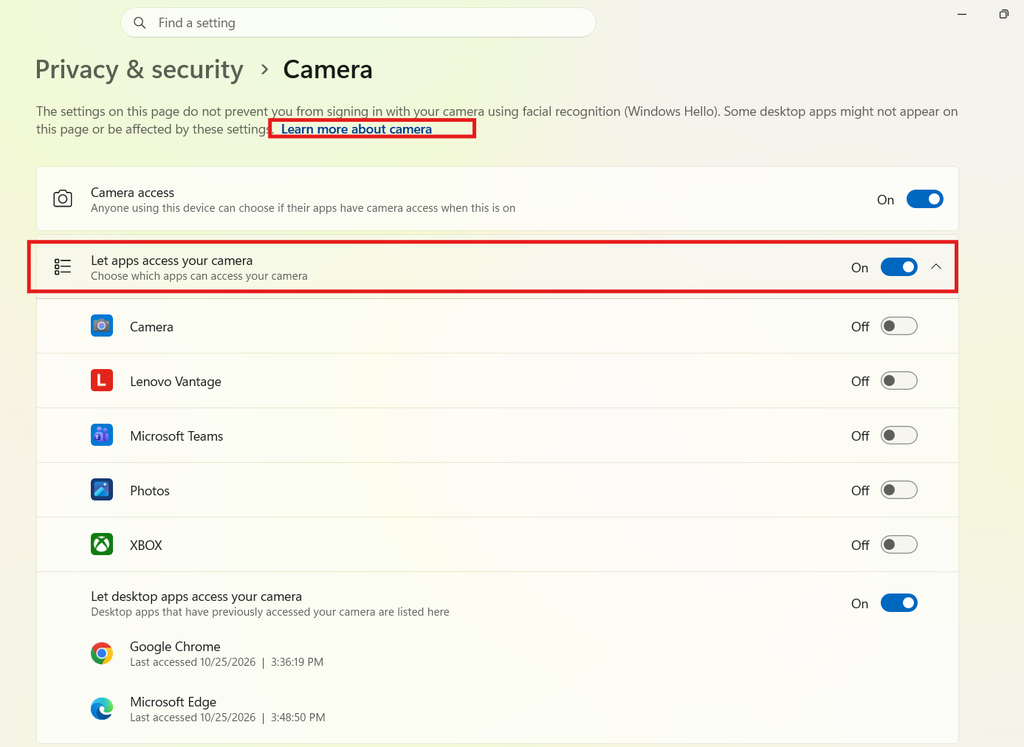
- Press Windows + I to open Settings.
- Select Privacy & security.
- Click Camera.
- Check which apps have camera access enabled.
- Look for recent camera activity or indicators showing that an app has accessed the camera.
Note: This page shows camera permissions and may show recent activity, but it does not always identify every desktop process currently using the webcam.
Check the Camera Indicator
- If your webcam has indicator light, check whether it stays on when you are not using the camera.
- Windows may also display a camera icon or notification when an app accesses the camera.
- Close apps that commonly use webcams, such as Zoom, Microsoft Teams, Discord, Skype, OBS Studio, and browser tabs.
3. Check Which Browser Tab Is Using Your Webcam
If you are using Chrome:
- Open Chrome.
- Enter
chrome://settings/content/camerain the address bar. - Review the websites allowed to access your camera.
- Close any video-call, webcam-test, or recording tabs that you no longer need.
- If necessary, block camera access for a website you do not trust.
You can also click the camera or site-permission icon near the address bar when a website is using your webcam.
4. Stop Apps from Accessing Your Webcam
To restrict access:
- Open Settings → Privacy & security → Camera.
- Turn off camera access for apps that do not need it.
- Disable Let desktop apps access your camera if you want to restrict desktop-app access broadly.
Be aware that disabling desktop camera access may prevent legitimate desktop applications from working with your webcam.
5. If You Still Cannot Identify the App
Try these additional steps:
- Press Ctrl + Shift + Esc to open Task Manager.
- Close unnecessary video conferencing, streaming, and camera applications.
- Open Device Manager → Cameras, right-click your webcam, and select Disable device temporarily if you need to stop camera access completely. Re-enable it when required.
- Restart Windows if the webcam remains busy after closing all applications.
Important: Task Manager does not reliably show which process currently owns the webcam. If you need to identify the exact process, a tool such as Microsoft Process Explorer or Windows diagnostic logging may be needed.