Is your webcam not working when you need it for a video call, online class, virtual meeting, or interview? Camera problems can occur for several reasons, including permission issues, outdated drivers, incorrect camera settings, browser problems, or another application using your webcam.
Step-by-Step Guide to Fix a Webcam
Step 1: Check Whether Your Webcam Is Connected
If you are using an external webcam, start by checking its physical connection.
- Disconnect the webcam from your computer.
- Reconnect it securely to a USB port.
- Try a different USB port if the camera is still not detected.
- Check whether the webcam has a physical power switch or privacy cover.
- Restart your computer and check the camera again.
For a built-in laptop camera, make sure the camera shutter is open and that no keyboard shortcut has disabled it.
Step 2: Allow Camera Permissions in Your Browser
If your webcam is not working on a website, your browser may be blocking camera access.
In Google Chrome:
- Open the website where you want to use your webcam.
- Click the site information icon next to the address bar.
- Open the site’s permissions or settings.
- Find the Camera option and set it to Allow.
- Reload the webpage and try accessing your webcam again.
Also, make sure the correct camera is selected if multiple camera devices are available.
Camera access generally requires a secure connection, such as HTTPS, or a trusted local development address.
Step 3: Check Your Computer’s Camera Settings
Your operating system may block applications from accessing your webcam.
On Windows 11 or Windows 10:
- Open Settings.
- Navigate to Privacy & security (or Privacy in Windows 10).
- Select Camera.
- Turn on camera access.
- Enable access for apps and desktop applications where applicable.
On macOS:
- Open System Settings.
- Select Privacy & Security.
- Click Camera.
- Enable camera access for the browser or application you want to use.
- Close and reopen the application.
The exact menu names may vary depending on your operating system version.
Step 4: Close Other Applications Using Your Webcam
Some applications may prevent other programs from accessing the camera properly.
For example, if Zoom is using your webcam, another website might fail to display the camera feed.
To fix this issue:
- Close Zoom, Microsoft Teams, Skype, and other video applications.
- Close unnecessary browser tabs that may be using the webcam.
- Reopen the application or website where you need the camera.
- Select the correct webcam and test it again.
If the problem continues, restart your browser or computer.
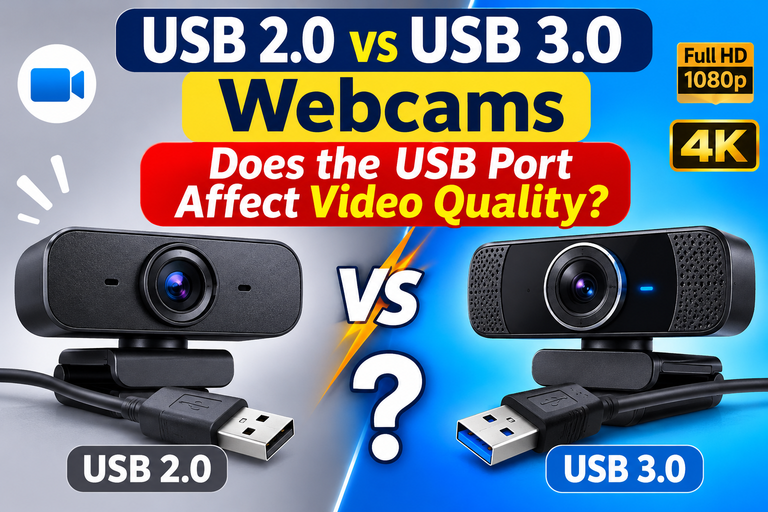
Read More : Does the USB Port Affect Video Quality?
Step 5: Select the Correct Camera Device
Computers can have multiple camera devices, such as a built-in webcam, an external USB webcam, or a virtual camera.
If the wrong device is selected, you might see a black screen or no video at all.
To resolve this issue:
- Open the video application’s camera settings.
- Select the correct camera from the available devices.
- Check whether the camera preview appears.
- Disconnect unused external cameras if necessary.
- Test the webcam again.
If your camera is missing from the device list, check your system’s camera settings and drivers.
Step 6: Update or Reinstall Your Webcam Driver
If your webcam is not detected in Windows, an outdated or corrupted driver could be responsible.
Follow these steps:
- Right-click the Start button and open Device Manager.
- Expand Cameras or Imaging devices, if available.
- Right-click your webcam.
- Select Update driver and follow the instructions.
- Restart your computer after updating.
If the problem started after a recent driver update, check whether the Roll Back Driver option is available.
You can also uninstall the camera device and restart your computer so Windows can attempt to reinstall the driver. If necessary, obtain the correct driver from your laptop or webcam manufacturer’s official website.
Step 7: Test Your Webcam in Another Application
Testing your camera in a different application helps you determine whether the issue is related to the webcam itself or a specific program.
For example, on Windows, open the built-in Camera app. On macOS, try an application that supports video input.
- If the camera works in another application, check the permissions and settings of the original application.
- If the camera fails everywhere, investigate system permissions, drivers, connections, or possible hardware problems.
This simple test can help narrow down the cause without installing additional software.
Step 8: Restart Your Browser and Clear Browser Issues
Sometimes, temporary browser errors prevent the webcam from working correctly.
Try the following solutions:
- Reload the webpage.
- Close and reopen your browser.
- Update your browser to the latest available version.
- Disable extensions that might interfere with camera access.
- Clear site-specific permissions and grant camera access again.
- Try another supported browser to see whether the problem persists.
Before clearing browser data, remember that doing so may remove saved website preferences or other browsing information.
Step 9: Check Your Antivirus and Privacy Software
Some antivirus programs and privacy utilities include webcam protection features that block camera access.
If your webcam is still not working:
- Open your security software.
- Look for webcam protection or privacy settings.
- Check whether your browser or video application is blocked.
- Allow camera access for trusted applications.
Avoid disabling your antivirus or other security protections completely. Adjust the relevant camera permission instead.
Step 10: Restart Your Computer
Restarting your computer can resolve temporary software errors, camera service problems, and device detection issues.
Save your work, close your applications, and restart your computer. After restarting, open your camera application or browser and test the webcam again.
If the camera still does not work, continue with the diagnostic checks below.
Frequently Asked Questions (FAQs)
Why is my webcam showing a black screen?
A black screen can result from blocked camera permissions, an incorrect camera device, another application using the webcam, a closed privacy shutter, or a driver problem. Check these settings and test your camera in another application.
Why is my webcam not working in Chrome?
Chrome may not have permission to access your camera, or the website may be using the wrong device. Allow camera access through the site’s settings, select the correct camera, and reload the page.
Why does my laptop camera work in one app but not another?
This usually indicates an application-specific problem. Check camera permissions, confirm that the correct device is selected, and close other applications that may be using the webcam.
How do I know if my webcam is broken?
Test the webcam in multiple applications and check whether it appears in your operating system’s camera settings. If it remains undetected after checking connections, permissions, and drivers, a hardware issue may be possible.
Can I test my webcam without installing software?
Yes. You can use a browser-based webcam testing tool that requests camera permission and displays a live preview. Make sure you trust the website before granting access.
Why is my webcam not working after a Windows update?
A Windows update may change camera permissions or affect a driver. Check the Camera privacy settings, inspect Device Manager, and update or roll back the driver if appropriate.
Does a webcam require an internet connection to work?
Not always. A webcam can work with a local application without an internet connection. However, online webcam tests and browser-based video meetings generally require internet access.
Conclusion
A webcam that is not working can be frustrating, especially before an important meeting, interview, or online class. Fortunately, many camera problems can be resolved by checking physical connections, granting camera permissions, selecting the correct device, updating drivers, and restarting your browser or computer.
Need to check your camera quickly? Visit our Online Camera Test to see whether your webcam displays a live video preview in your browser.